 MicrosoftDynamics 365 Contact Center
What agents know, do, and remember
Authoring for multi-agent AI
A new generation of AI agents for Dynamics 365 Contact Center, buildable from Contact Center or Microsoft Copilot Studio.
I designed how makers add, edit, and remove Knowledge, Tools, and Memory, and I led the rebuild of the prototype the team designed in.
- Role
- Product designer
- Team
- Grew from 3 designers to 15–20 with research and content
- Timeline
- May–Sep 2026
- Status
- Public preview
Overview
More capable agents, one way to build them
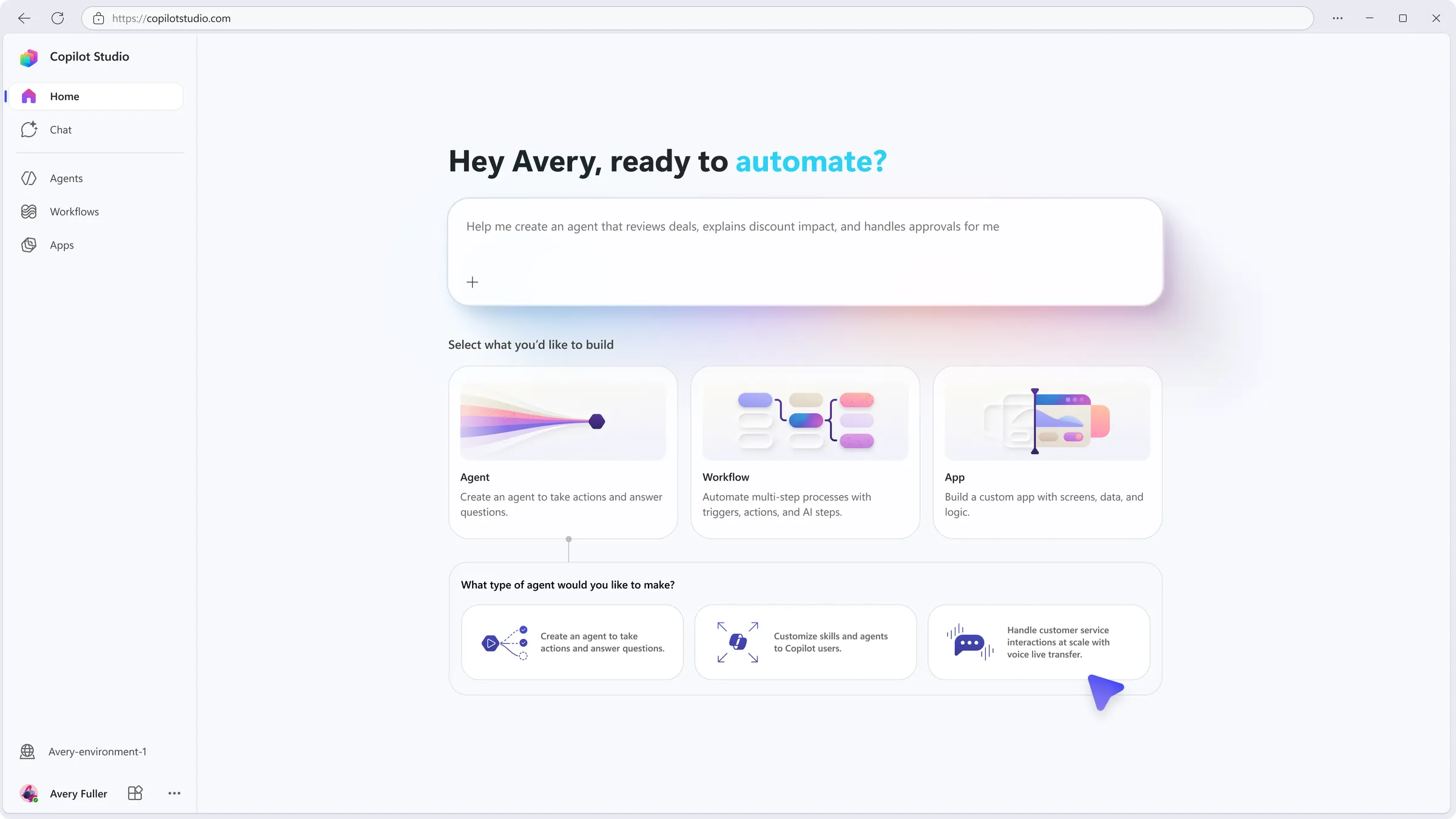
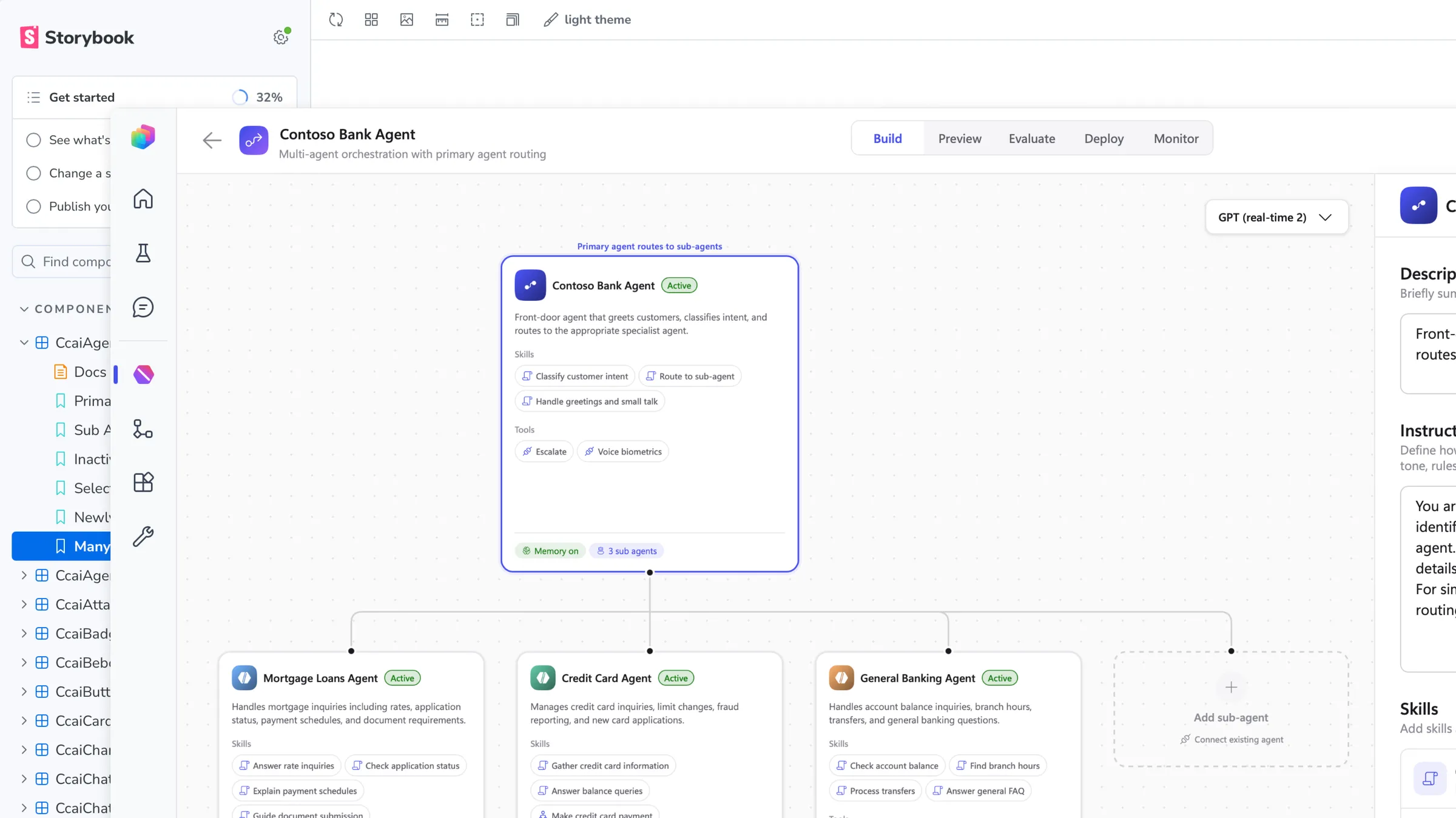
Microsoft was introducing a new kind of AI agent for contact centers. Each one is really a team: a primary agent that greets customers and routes them to specialized sub-agents. Makers can start one from Dynamics 365 Contact Center or from Copilot Studio, and both paths land in the same build experience.
The product challenge was adding a lot more capability without making setup harder, or creating two ways to configure the same agent. That meant building on Copilot Studio’s patterns, which were being overhauled at the same time. It also meant handling the places where a multi-agent contact center agent works differently from a typical Copilot Studio agent. The timeline was short.
I owned authoring for Knowledge, Tools, and Memory: how makers add, edit, and remove each one, including the states after the happy path. I also led the rebuild of the code-first prototype that became the team’s design source of truth.
Platform patterns
Reusing Copilot Studio’s patterns, and breaking them on purpose
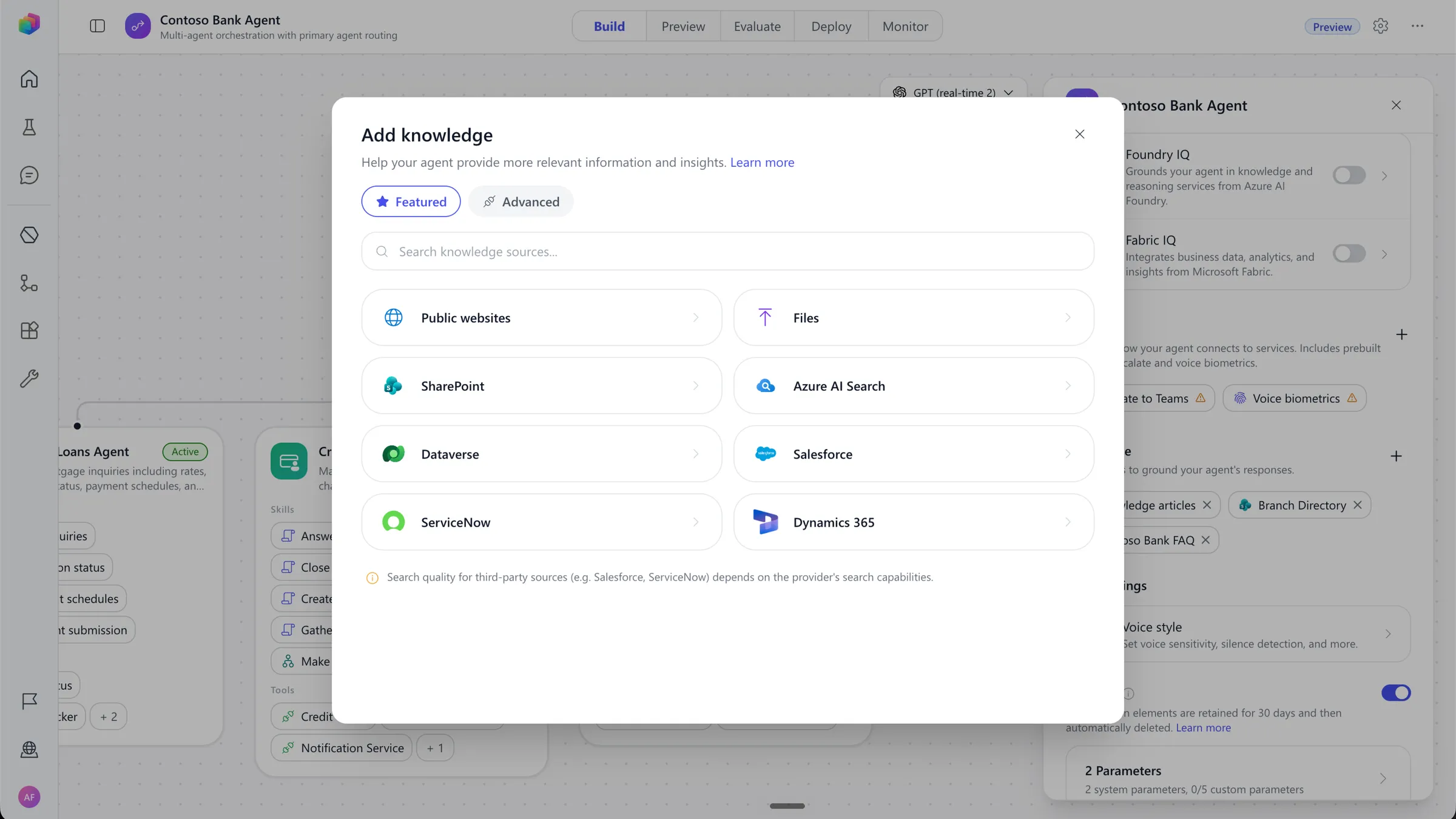
My default was to reuse Copilot Studio’s existing patterns. Makers wouldn’t have to relearn anything, and our agents would inherit platform improvements. But these agents didn’t work exactly like Copilot Studio agents. Copying every pattern as-is would have broken in real places. A separate flow for each capability would have been faster, but left makers with a patchwork.
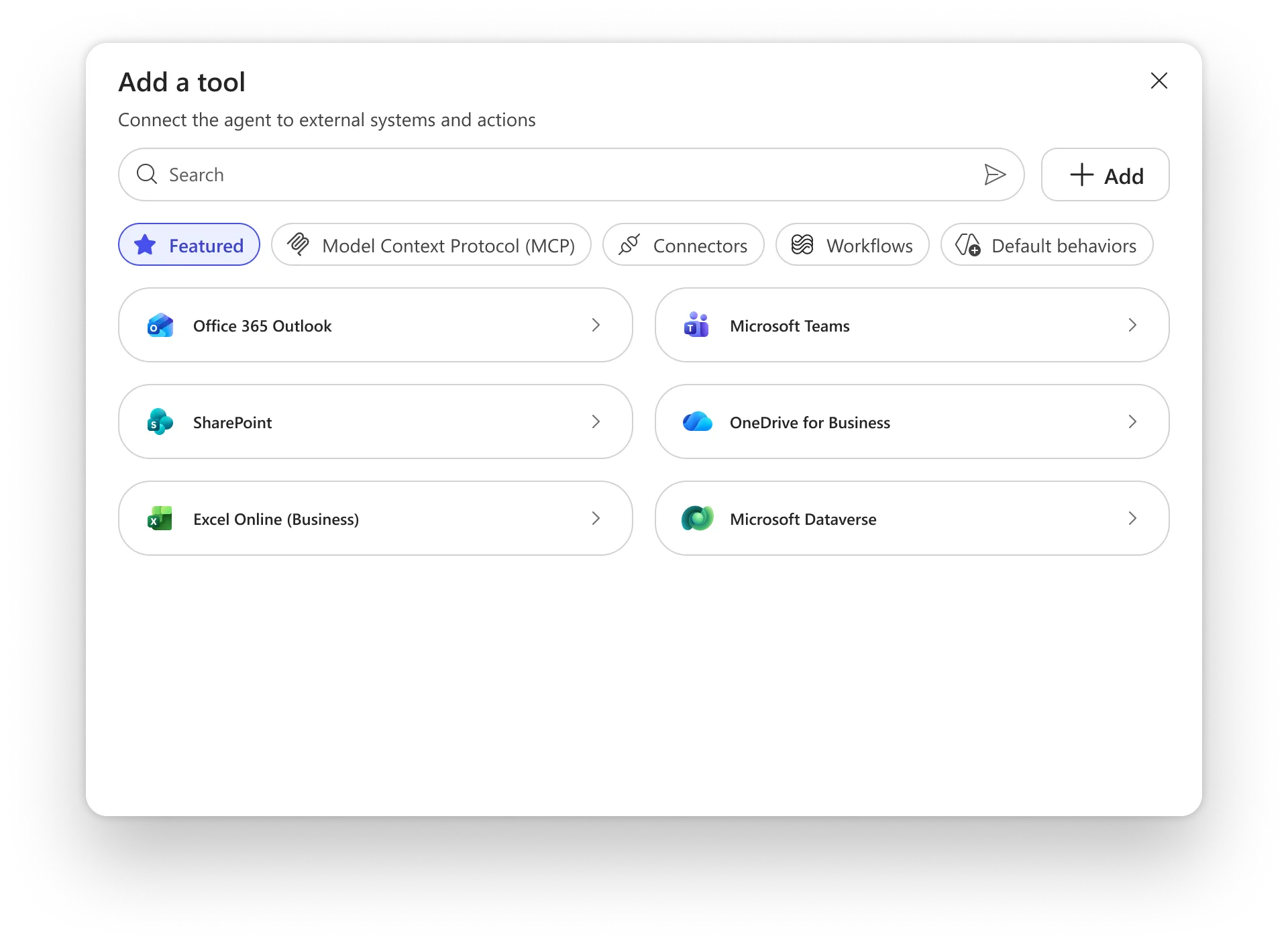
Knowledge was a good example. In our agents, knowledge had to be authenticated at two levels, the agent and the source, and Copilot Studio didn’t handle it that way. So I kept Copilot Studio’s pattern for adding knowledge and extended it for what our product introduced: telling makers up front when a source couldn’t be added yet, and covering what happens to sources and published agents when authentication changes later. The same thing happened across Tools and Memory. Start from the platform pattern, and extend it only where our agents actually behaved differently.
The tradeoff was more states to design and more coordination with a platform team whose patterns were changing under us. My rule was simple: if we break a pattern, break it in a way the platform can use. I shared the authentication edge cases back with the Copilot Studio team so they had them when they needed them.
Memory
Keeping memory topical, not personal
Memory lets an agent store certain information from a conversation and use it the next time that customer reaches out. Copilot Studio already had memory, but for a single agent. Our agents were a primary agent plus sub-agents, some pulled in from Copilot Studio. So memory is controlled once for the whole agent, not agent by agent.
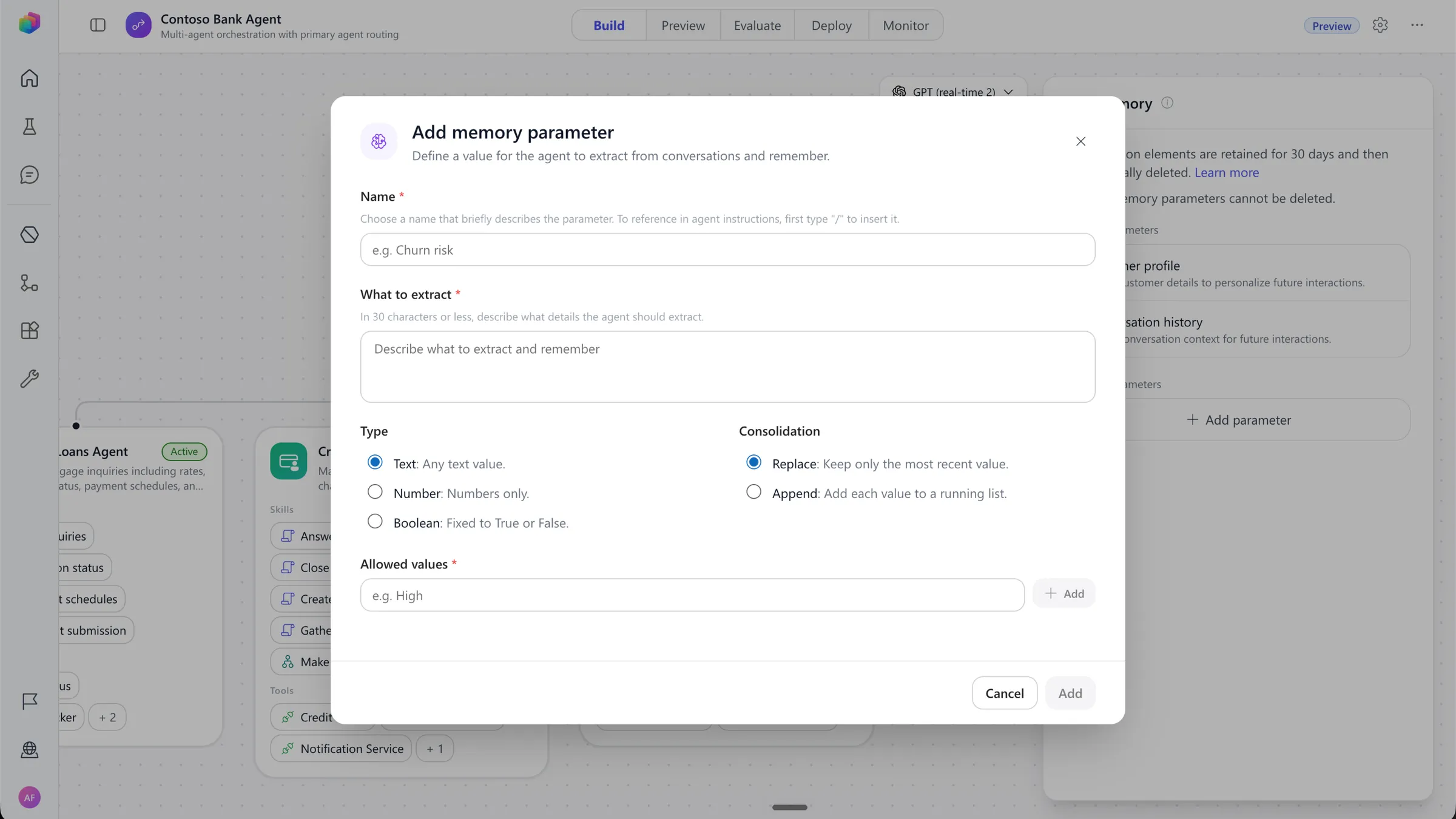
For public preview, we kept it deliberately simple. Memory is on by default, with two default topics on the primary agent. Makers can switch it off or add up to five topics of their own. Adding a topic is one short form: what it is, a description, its type, how it’s stored, any specific language, and its options.
The bigger decision was what memory is for. It’s meant to help an agent recognize why someone is calling, not to build a profile of who they are. Some topics can’t be created at all, and stored information expires after a set window. Remembering why someone called last week helps. Holding onto it for months mostly doesn’t.
The tradeoff was less flexibility and less personalization for makers. We accepted that because contact center conversations are full of customer data, and an agent that feels invasive is one nobody wants to deploy.
Memory should help an agent recognize why someone is calling, not build a profile of who they are.
Prototype
Rebuilding the prototype top-down, with AI agents doing the heavy lifting
When I joined, some designers worked in Figma and some in a vibe-coded prototype, which had become the most complete picture of the product. But it lived in a private repo set up quickly outside Microsoft’s managed infrastructure, and it used libraries Microsoft hadn’t approved. Microsoft takes security seriously, so it had to move. I had the most code-first experience on the team, so I led the rebuild, with another designer supporting.
A design-engineering lead from the broader Microsoft design org suggested building bottom-up: components first, then documentation, then patterns, then pages. That’s the right way to build production code. I tried it for two weeks. But this prototype wasn’t production code. It was a working reference for engineering, closer to a Figma file that runs. Its flows spanned several surfaces. Building one page at a time meant nothing would work end to end for weeks, and the team needed it for the work after preview.
So I went top-down. I copied the old repo in as a reference. I wrote detailed Markdown instructions: keep CSS out of the HTML, use the Fluent library loaded globally, link to Copilot Studio’s shared components instead of recreating them. Then I ran GitHub Copilot agents across parallel chats to rebuild each experience against the reference. As each part of the new repo matched, we deleted that part of the old one.
The tradeoff was less pristine code than the bottom-up approach would produce. That was fine, since engineering rebuilds everything for production anyway. What mattered was that the prototype was accurate, secure, and built on approved libraries.
Outcome
Preview shipped, on a foundation the team could keep building on
- Public preview (September 2026): Knowledge, Tools, and Memory authoring shipped in the new build experience, reachable from Contact Center or Copilot Studio. General availability is planned to follow.
- Shared back: The knowledge authentication edge cases went back to the Copilot Studio team.
- Prototype: Rebuilt in two weeks after switching approach, while I kept delivering preview designs. It now lives in a Microsoft-managed repo that meets internal security guidance, with the whole product rebuilt inside it.
- Adoption: Adopted by my team and partner teams. Designers and PMs build on Fluent and Copilot Studio components by default, and engineering gets a reference without code it can’t use.
Looking back
Agree on the source of truth before building on it
We were downstream of Copilot Studio’s pattern overhaul. Under time pressure, we treated some upstream designs as locked, and then they changed. Next time, I’d set up a small working group with the platform team early to agree on what to build against this month and next, and track their release cycle so changes outside our control don’t catch us by surprise.